What is AWS Co-sell Integration for Pipedrive?
Managing AWS co-sell opportunities natively in AWS Partner Central means working outside your CRM, creating friction, duplicate data entry, and gaps in pipeline visibility. SaaSify's Pipedrive integration eliminates that gap.
The integration connects your Pipedrive pipeline directly to AWS Partner Central (ACE), enabling sales teams to view and manage AWS co-sell opportunities and inbound invitations without leaving Pipedrive. A dedicated SaaSify panel in the Deal sidebar surfaces co-sell data in context, and writeback pushes AWS status updates back into Pipedrive Deal fields automatically.
The result is a single interface for your sales team. Co-sell activity is tracked in Pipedrive, updated by AWS, and visible without switching between systems.
Key capabilities
Co-sell visibility from Deals
View AWS co-sell opportunities and inbound invitations directly from any Deal record in Pipedrive via the SaaSify panel in the Deal sidebar.
Writeback to Deal fields
AWS co-sell status and stage data writes back to custom Deal fields in Pipedrive automatically, keeping pipeline data current without manual updates.
Webhook-based sync
A webhook configured in Pipedrive transmits Deal data to SaaSify when monitored fields are updated, ensuring SaaSify always reflects current Deal state.
Centralized co-sell view
A dedicated SaaSify Deal in Pipedrive serves as a central location to view all co-sells and inbound AWS invitations across your pipeline.
Pre-requisites
Confirm the following before setup or first use:
Pipedrive Admin access for initial configuration
Active SaaSify account with AWS Co-sell enabled for your seller account
Co-sell managers assigned one of the following ACE roles in AWS Partner Central: Alliance Lead, Alliance Team, ACE Manager, or ACE User
How it works
Setup involves five configuration steps completed once across SaaSify and Pipedrive. After setup, the SaaSify panel in the Deal sidebar surfaces co-sell data in context, the webhook keeps Deal data flowing to SaaSify, and writeback fields display AWS status updates on Deal records.
SaaSify connects to Pipedrive via OAuth during the initial integration setup
A webhook in Pipedrive sends Deal field updates to SaaSify in real time
A dedicated SaaSify Deal in Pipedrive displays all co-sells and inbound invitations
The SaaSify panel in the Deal sidebar surfaces co-sell data on individual Deal records
Custom Deal fields receive AWS co-sell status and stage data via writeback
Current release scope
This release supports Co-sell via ACE only. Microsoft and GCP co-sell support coming soon.
Step by step guide
Step 1: Connect Pipedrive to SaaSify
Install the SaaSify app and complete token exchange. This step establishes the OAuth connection between SaaSify and Pipedrive.
In SaaSify, navigate to Settings > Integrations > Pipedrive
Enable the Allow Writeback checkbox
Click Save, then Validate
You will be redirected to the Pipedrive installation page -- click Allow and Install
You will be redirected back to the SaaSify web portal -- click Save to complete the connection
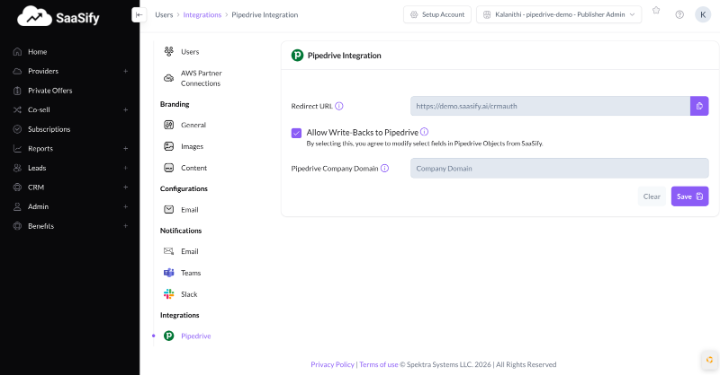
SaaSify Integrations settings -- enable Allow Writeback and click Save
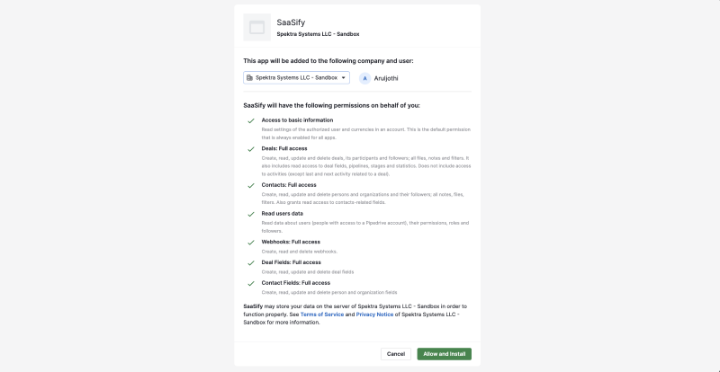
Pipedrive installation page -- click Allow and Install
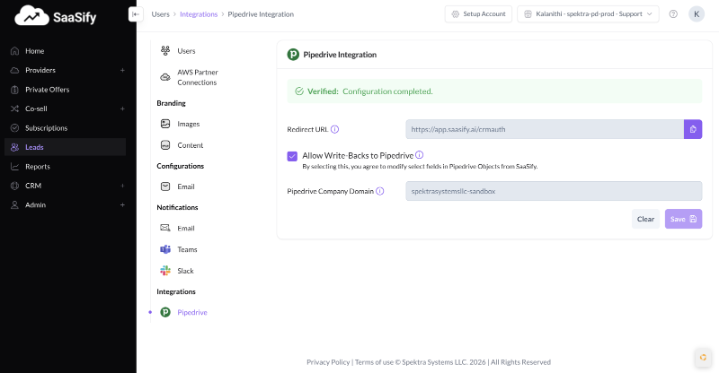
Return to SaaSify -- click Save to complete the connection
Step 2: Configure the webhook
The webhook transmits Deal data from Pipedrive to SaaSify when monitored fields are updated. This keeps SaaSify in sync with your Pipedrive pipeline in real time.
Step 2.1: Navigate to Tools and Apps
In Pipedrive, click the profile icon in the top-right corner
Select Tools and Apps from the menu
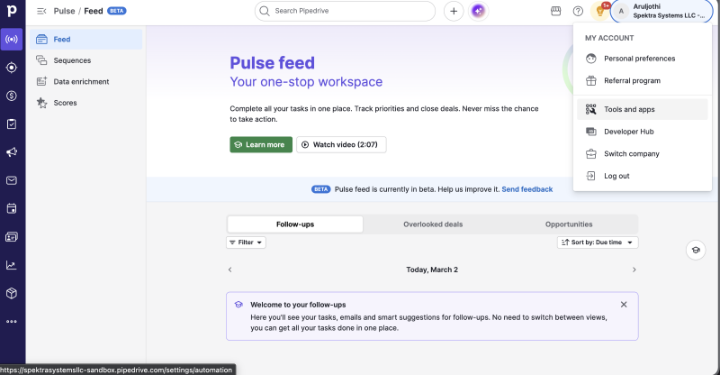
Pipedrive profile icon menu -- navigate to Tools and Apps
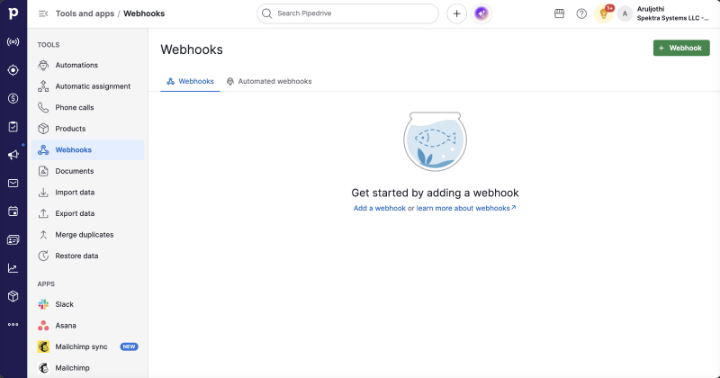
Tools and Apps page in Pipedrive
Step 2.2: Configure the webhook
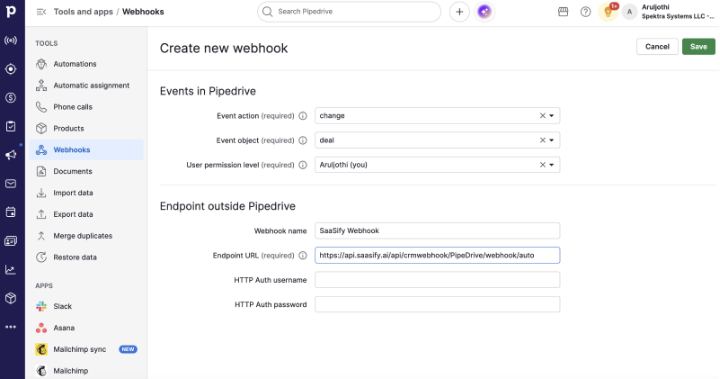
Navigate to Webhooks and click + Webhook
Under Events in Pipedrive, set Event Action to Change
Set Event Object to Deal
Under Endpoint Outside Pipedrive, enter the Endpoint URL: https://api.saasify.ai/api/crmwebhook/PipeDrive/webhook/auto
Set the Webhook Name to SaaSify Webhook
Click Save
Webhooks page -- click + Webhook
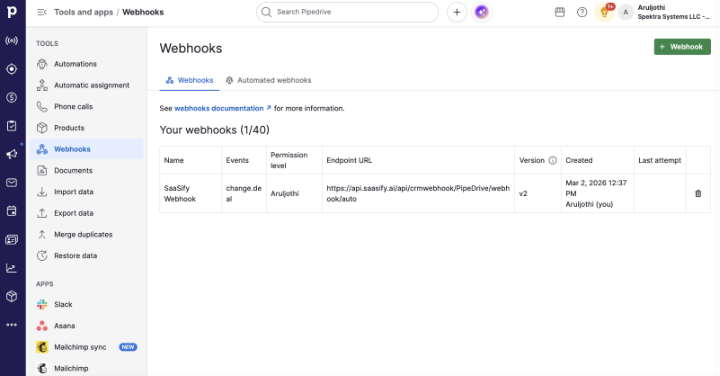
Webhook configuration -- Event Action, Event Object, Endpoint URL, and Webhook Name
Note: The endpoint URL must be entered exactly as shown. Any variation will prevent Deal data from reaching SaaSify.
Step 3: Create the SaaSify Deal
The SaaSify Deal serves as a central location in Pipedrive to view all co-sells and inbound AWS invitations across your pipeline. It is a dedicated Deal record, not tied
In Pipedrive, navigate to Deals
Click + Deal
Enter the deal name as SaaSify Deal
Click Save
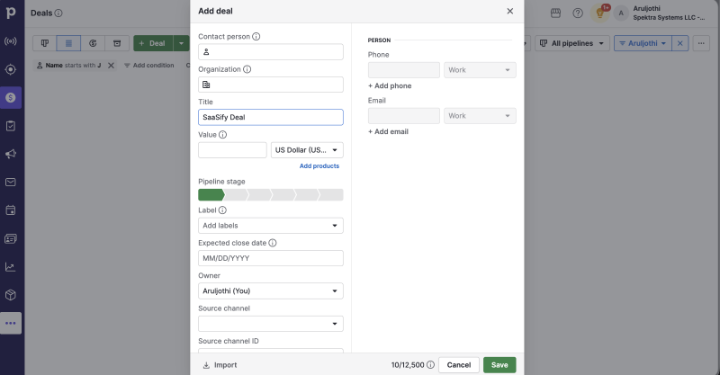
Create new Deal -- name it SaaSify Deal
Note: The Deal name must be entered as "SaaSify Deal" exactly. SaaSify uses this name to identify the central co-sell view.
Step 4: Enable the SaaSify panel in the Deal sidebar
The SaaSify panel must be enabled in the Deal sidebar before it can be used to view co-sell data on individual Deal records.
In Pipedrive, navigate to any Deal record
In the Summary section, hover over the three dots and click Manage Sidebar Sections
Locate SaaSify in the list and click Show Section
Click Done to apply the changes
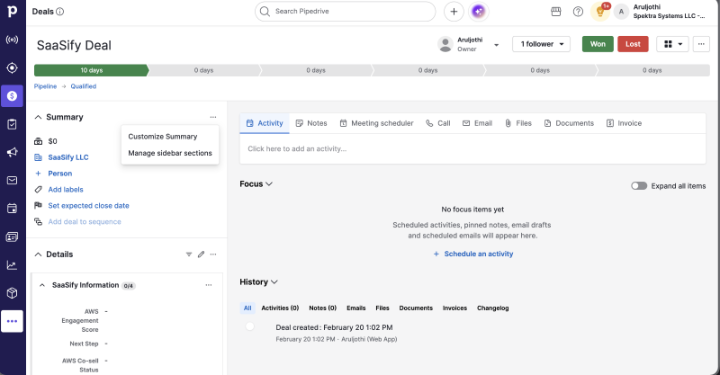
Deal Summary section -- hover over three dots and click Manage Sidebar Sections
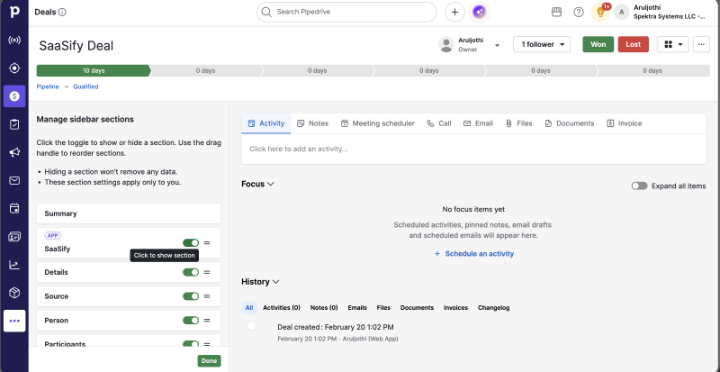
Sidebar Sections management -- locate SaaSify and click Show Section
Step 5: Set up custom Deal fields for writeback
Custom Deal fields receive AWS co-sell status and stage data from SaaSify via writeback. These fields must be created in Pipedrive before writeback data will appear on Deal records.
Step 5.1: Navigate to the Deal page
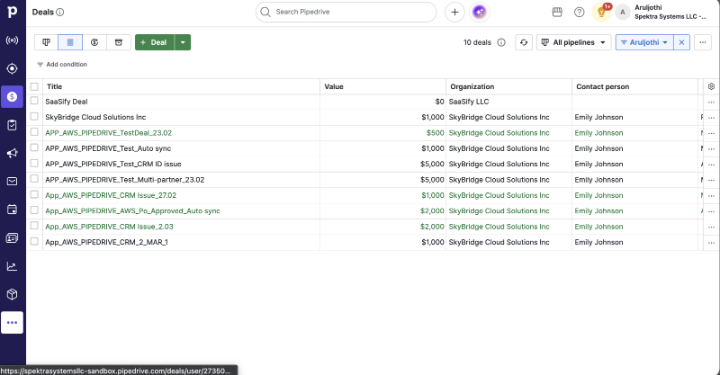
In Pipedrive, navigate to any Deal record
In the Details section, click + Custom Field
Deal record -- Details section with + Custom Field option
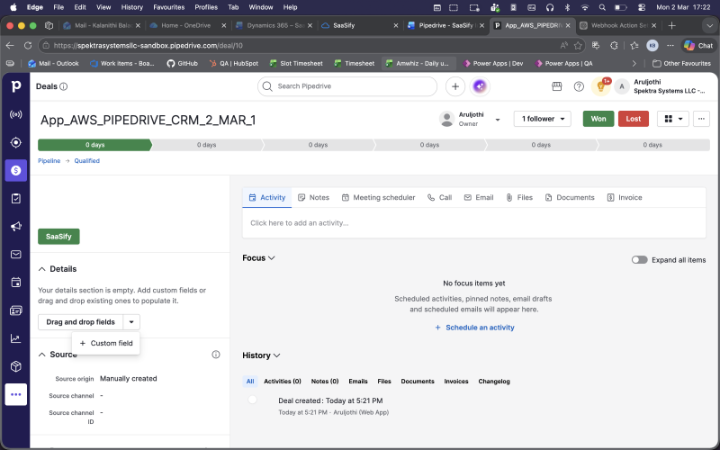
Deal Details section -- click + Custom Field to add a new field
Step 5.2: Add the required Deal fields
For each field that should receive writeback data from SaaSify, complete the following:
Enter a Field Name corresponding to the co-sell data point (e.g. AWS Co-sell Status, AWS Co-sell Stage)
Select or update the Field Group
Choose the appropriate Field Type
Click Save
Repeat for each additional field required
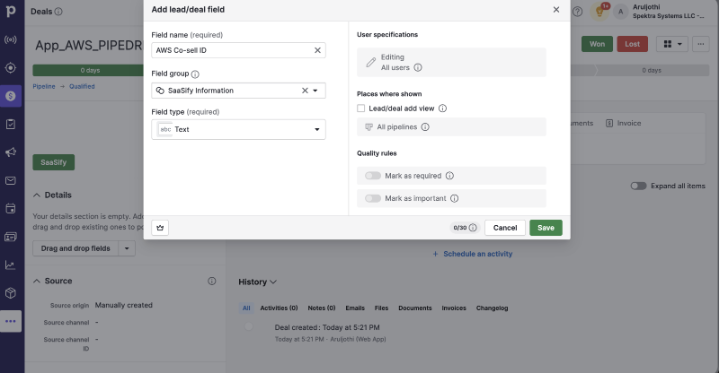
Add a Deal Field -- enter Field Name, Field Group, and Field Type
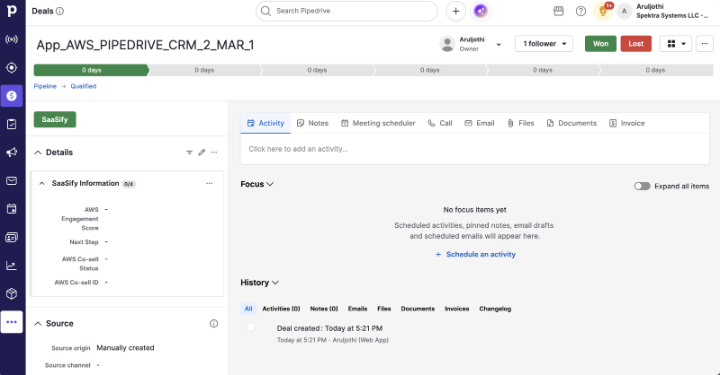
Completed custom Deal fields for SaaSify writeback
Recommended fields to create for SaaSify writeback:
Field Name | Suggested Field Type |
AWS Co-sell ID | Text |
AWS Co-sell Status | Text |
AWS Co-sell Stage | Text |
AWS Marketplace Engagement Score | Text |
Note: Field names must match exactly what is configured in SaaSify field mapping under Settings > Integrations > Pipedrive. Any mismatch will prevent writeback data from populating.
FAQs
Does SaaSify support Pipedrive integration for AWS co-sell?
Yes. SaaSify integrates with Pipedrive to surface AWS co-sell opportunities and inbound invitations directly within Pipedrive Deal records. The integration uses a SaaSify panel in the Deal sidebar, a webhook for Deal data sync, and writeback fields to display AWS status updates.
Which cloud providers are supported for co-sell in the Pipedrive integration?
The current release supports AWS Co-sell via ACE only. GCP and Microsoft co-sell are in the pipeline and coming soon.
What ACE roles are required to manage co-sells through Pipedrive?
Users must hold one of the following roles in AWS Partner Central: Alliance Lead, Alliance Team, ACE Manager, or ACE User. Pipedrive access alone is not sufficient for co-sell actions in AWS Partner Central.
Where is co-sell data visible in Pipedrive?
Co-sell data is visible in two places: in the SaaSify panel within the Deal sidebar on individual Deal records, and in the dedicated SaaSify Deal which displays all co-sells and inbound invitations centrally.
What is the SaaSify webhook endpoint URL for Pipedrive?
The endpoint URL is https://api.saasify.ai/api/crmwebhook/PipeDrive/webhook/auto. This must be entered exactly as shown during webhook configuration in Pipedrive. Any variation will prevent Deal data from reaching SaaSify.
What does the webhook do in the Pipedrive integration?
The webhook transmits Pipedrive Deal data to SaaSify whenever a monitored field changes. It is configured to fire on the Change event for the Deal object. Without the webhook, SaaSify will not receive Deal updates from Pipedrive.
Why does a dedicated SaaSify Deal need to be created in Pipedrive?
The SaaSify Deal is a designated record that SaaSify uses to surface all co-sell opportunities and inbound AWS invitations in a single, central location within Pipedrive. It is not tied to any individual opportunity and must be named "SaaSify Deal" exactly for SaaSify to identify it.
Can the SaaSify panel be enabled on all Deal records, or only selected ones?
The Show Section setting applies to the Deal sidebar layout globally, once enabled, the SaaSify panel is available on all Deal records in Pipedrive. It does not need to be enabled per Deal.
What custom Deal fields should be created for writeback?
At minimum, create fields for AWS Co-sell ID, AWS Co-sell Status, and AWS Co-sell Stage. An AWS Marketplace Engagement Score field is also recommended. Field names must match the writeback configuration in SaaSify under Settings > Integrations > Pipedrive.
What happens if a custom Deal field name does not match what is configured in SaaSify?
Writeback data will not populate the field. SaaSify maps writeback data to fields by name, any discrepancy between the Pipedrive field name and the SaaSify mapping will result in the field remaining blank. Verify field names match exactly on both sides.
Does enabling writeback affect existing Pipedrive Deal data?
No. Writeback only populates the custom Deal fields created specifically for SaaSify. Existing Pipedrive Deal fields and data are not modified.
Is the Pipedrive integration configured per user or at the organization level?
The integration is configured at the organization level. Once setup is complete, all Pipedrive users with the appropriate Deal access and ACE role assignments can view and manage co-sells via the SaaSify panel.